

PHOTOPASSAGE
  • Home
  • PHOTOGRAPHIC EQUIPMENT
    • Camera
    • Camera Bag
    • Lens
    • Lighting
  • PHOTO TIPS
    • Tips for Beginners
    • Animal Photography
    • Portrait Photography
    • Landscape Photography
    • Macro Photography
  • Post-Processing
    • Software Introduction
  • REVIEWS
    • CAMERA SENSORS
    • Smartphone Camera
  • Inspiration
    Wedding Pictures Ideas: Freezing Eternal Romance

    Wedding Pictures Ideas: Freezing Eternal Romance

    Golden Hour Photography

    Golden Hour Photography

    What is a Composite in Photography

    What is a Composite in Photography

    Capturing the Beauty of Trees: A Photographic journey

    Capturing the Beauty of Trees: A Photographic journey

    The Beauty of Couple Feet Photography

    The Beauty of Couple Feet Photography

    Little Bear Photography: Capturing the Warmth and Beauty in Life

    Little Bear Photography: Capturing the Warmth and Beauty in Life

  • GALLERY
  • ABOUT
  • Home
  • PHOTOGRAPHIC EQUIPMENT
    • Camera
    • Camera Bag
    • Lens
    • Lighting
  • PHOTO TIPS
    • Tips for Beginners
    • Animal Photography
    • Portrait Photography
    • Landscape Photography
    • Macro Photography
  • Post-Processing
    • Software Introduction
  • REVIEWS
    • CAMERA SENSORS
    • Smartphone Camera
  • Inspiration
    Wedding Pictures Ideas: Freezing Eternal Romance

    Wedding Pictures Ideas: Freezing Eternal Romance

    Golden Hour Photography

    Golden Hour Photography

    What is a Composite in Photography

    What is a Composite in Photography

    Capturing the Beauty of Trees: A Photographic journey

    Capturing the Beauty of Trees: A Photographic journey

    The Beauty of Couple Feet Photography

    The Beauty of Couple Feet Photography

    Little Bear Photography: Capturing the Warmth and Beauty in Life

    Little Bear Photography: Capturing the Warmth and Beauty in Life

  • GALLERY
  • ABOUT
PHOTOPASSAGE
No Result
View All Result
Home Post-Processing Software Introduction

Photoshop Image Processing Software Tutorial: A Beginner’s Guide

by fange_sheyin
06/11/2024
Share on FacebookShare on Twitter

I. Introduction to the Software Interface

Once you open the Photoshop (PS for short) software, a feature-rich operating interface comes into view. At the top is the menu bar, which includes various commands such as File, Edit, Image, and Layers. Below the menu bar is the options bar, whose content changes according to the currently used tool.
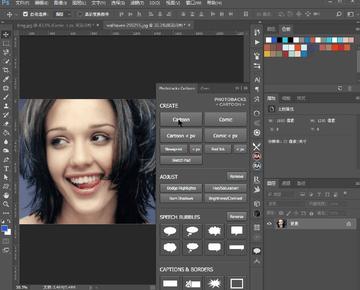
On the left side of the interface is the toolbar, where there are numerous useful tools. For example, the Marquee Tools (used to select regular shaped areas such as rectangles and ellipses), the Lasso Tools (suitable for freely drawing selection areas), and the Magic Wand Tool (which can quickly select areas with similar colors). The Move Tool is used to move layer or selection contents on the canvas, and the Crop Tool can crop the image size. The Brush Tool can create various brushstroke effects, and the Eraser Tool is used to erase unwanted parts.

On the right side is the panel area, including the Layers, Channels, and Paths panels. The Layers panel is the most crucial one. It’s like multiple transparent sheets stacked together. Each layer can hold different image elements, making it convenient for us to edit individual elements without affecting the other parts.

II. Basic Operations

Opening and Saving Images
Click on the “File” menu and select “Open” to find the image file you want to process. When saving an image, if you want to keep the original file format, you can choose “Save”. If you want to save it as another format (such as PSD, JPEG, PNG, etc.), then choose “Save As”. The PSD format can retain all layer and editing information. The JPEG format is commonly used for web images, and the PNG format supports a transparent background.

Image Adjustment
Use the commands under the “Image” menu to adjust the image. “Image Size” can change the dimensions of the image. Pay attention to maintaining an appropriate resolution to avoid image distortion. “Brightness/Contrast” can adjust the overall brightness and contrast of the image, making it clearer or creating a special atmosphere. “Color Balance” can change the color tendency of the image, such as making the picture warmer or cooler.

III. Layer Operations

Creating and Deleting Layers
Click on the “New Layer” button at the bottom of the Layers panel to create a new layer. If a certain layer is no longer needed, simply drag it onto the “Delete Layer” button.

Layer Styles
Double-click on the blank area next to the layer thumbnail to add layer styles, such as Drop Shadow, Outer Glow, and Bevel and Emboss effects. These styles can add a three-dimensional and textured look to the image elements.

IV. Selection Operations

Creating Selections
After creating a selection using the Marquee Tools, Lasso Tools, or Magic Wand Tool, you can perform operations such as copying, moving, deleting, or adjusting the image within the selection.

Adjusting Selections
Through the commands in the Selection menu, you can feather the selection (to make the edge of the selection transition naturally) and transform (scale, rotate, distort the contents of the selection) the selection.

V. Filter Effects

There are a large number of preset effects in the Filter menu. For example, the “Blur” filter can simulate depth-of-field effects or motion blur effects. The “Sharpen” filter can make the image clearer. The “Styleize” filter can create various unique artistic effects, such as Emboss and Wind effects.

Through these basic operations, you can start exploring the infinite possibilities of Photoshop and process satisfactory images. Keep practicing and trying new functions, and you’ll become a PS expert.

Previous Post

Beginner’s Guide to Photography

Next Post

Capturing the Beauty of the Sea: Tips for Taking Gorgeous Seascape Photos

fange_sheyin

fange_sheyin

Related Posts

How to Capture a Beautiful Sunset with Your Phone
Tips for Beginners

How to Capture a Beautiful Sunset with Your Phone

10/01/2026
How a 60W Video Light Can Instantly Elevate Your YouTube Content
Tips for Beginners

How a 60W Video Light Can Instantly Elevate Your YouTube Content

10/01/2026
Body Selfie Hot Poses Ideas: Unleash Your Inner Confidence
Tips for Beginners

Body Selfie Hot Poses Ideas: Unleash Your Inner Confidence

10/01/2026
Recommended On Camera Fill Light
Tips for Beginners

Recommended On Camera Fill Light

11/01/2026
Exploring the Great Digital Camera: The Core Force in the Photography World
Tips for Beginners

Exploring the Great Digital Camera: The Core Force in the Photography World

14/02/2025
Beginner Digital Camera: A Comprehensive Guide
Camera

Beginner Digital Camera: A Comprehensive Guide

02/02/2025

Leave a Reply Cancel reply

Your email address will not be published. Required fields are marked *

  • ABOUT
  • Contact
  • GALLERY
  • HOME
  • The Classic SLR: Canon 5D Mark IV

All words, images, videos and layout, copyright 2024-2028 PhotoPassage May not be used without permission

No Result
View All Result
  • Home
  • PHOTOGRAPHIC EQUIPMENT
    • Camera
    • Camera Bag
    • Lens
    • Lighting
  • PHOTO TIPS
    • Tips for Beginners
    • Animal Photography
    • Portrait Photography
    • Landscape Photography
    • Macro Photography
  • Post-Processing
    • Software Introduction
  • REVIEWS
    • CAMERA SENSORS
    • Smartphone Camera
  • Inspiration
  • GALLERY
  • ABOUT

All words, images, videos and layout, copyright 2024-2028 PhotoPassage May not be used without permission